Display Unit Manufacturers: Automate SolidWorks Drawings
Every week brings a new shelf unit order, and for display unit manufacturers, no two orders are ever quite identical. Monday you’re quoting a 900mm wide modular display with a branded header panel. By Thursday, a larger client wants the same system at 1200mm with no header at all, and somewhere in between, an engineer is redrawing the assembly from scratch. The real cost isn’t the design work itself. It’s the repetition of it.
This is the reality display unit manufacturers face constantly: each variant demands new drawings, updated dimensions, revised annotations. DriveWorks is a SolidWorks add-in built specifically for this “same but different” product challenge. Instead of manually redrawing each variant, you capture the logic once and let the system generate accurate drawings automatically. This post walks through how display unit manufacturers can automate SolidWorks drawings with DriveWorks.
Why Display Units Are Harder to Automate Than They Look
Store display units look deceptively simple from the outside. Stacks of modules that should slot together like LEGO. In reality, a single range might flex on width, shelf count, branding panel type, material, base configuration, and footprint. Every one of those changes ripples through the drawing set.
A shelf might need to shift thickness when you change materials. The header panel dimensions cascade into assembly views. The base footprint affects structural callouts. Component counts change. Load ratings shift. Suddenly, what looked like a straightforward parametric design becomes a tangle of interdependencies, each one demanding a fresh drawing iteration.
SolidWorks Configurations and design tables were built to handle this. They work well up to a point. But once your SolidWorks configurations multiply and your drawing outputs grow, you hit a ceiling. You’re still manually updating views, re-dimensioning, checking annotations. You’re still redrawing rather than recalculating.
What DriveWorks Actually Does Inside SolidWorks
DriveWorks sits inside SolidWorks as a SolidWorks add-in. You define which dimensions and features should change based on your key variables. DriveWorks captures those relationships as rules, then applies them consistently whenever you enter new order specifications.
Here’s the workflow: you identify key variables in your design (width, shelf count, panel type, material). You then manually define rules in DriveWorks that specify how each variable affects dimensions and features in the 3D model. Once those rules are set, you input the new order’s parameters into DriveWorks and it applies them consistently.
Once you’ve captured that logic, you input the new order’s dimensions into DriveWorks (width, shelf count, header option, etc.). It regenerates not just the 3D model, but the entire drawing package for your store display units. Correct views, updated annotations, proper scale. All automatically.
There’s also a practical entry point for display unit manufacturers just getting started with SolidWorks design automation. DriveWorksXpress comes free with every SolidWorks seat and works for single-configuration designs with limited variables. It’s genuinely functional for testing whether automation makes sense for one product range. Solo is the next tier, handling multiple configurations and more complex rules. Pro adds multi-user collaboration and integration with external data sources. Most display unit manufacturers start with DriveWorksXpress, then move to Solo once automation becomes central to their workflow.
One more thing engineers appreciate: master files stay protected. DriveWorks always works from copies. Your source models remain untouched.
Automating the Drawings Themselves
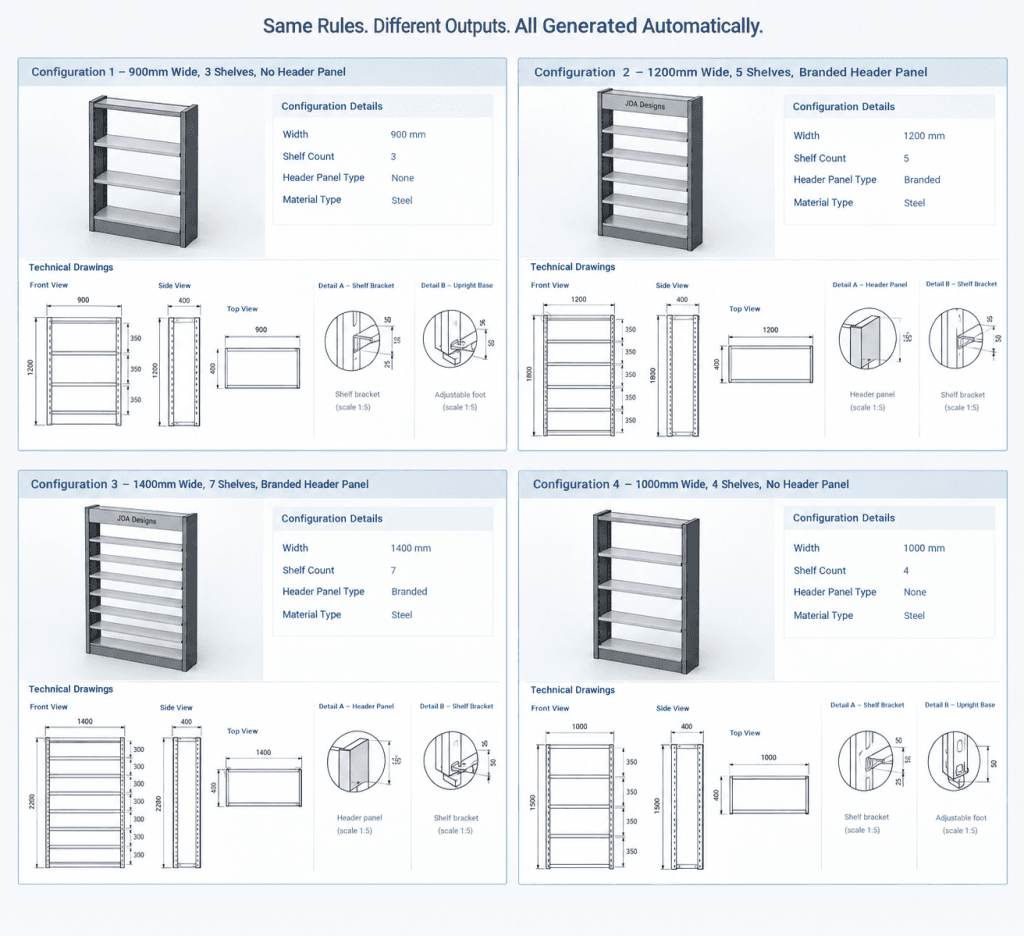
Once your rules are set, changing an order specification regenerates the full drawing package within minutes. Not in theory. In practice.
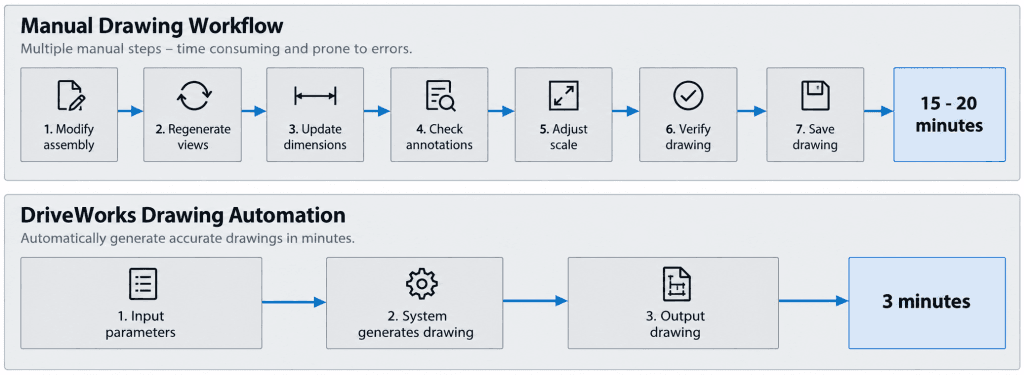
Picture a modular shelving range built for store display units. A standard 1200mm unit comes with 5 shelves and a header panel. Customer A wants 900mm wide with 3 shelves and no header. Customer B wants 1400mm wide with 7 shelves and a branded header. In the old workflow, you’d modify the assembly for each variant, then manually regenerate views, update all dimension strings, check that annotations didn’t overlap, adjust drawing scale, and verify against the spec. That’s 15 to 20 minutes per variant, minimum.
With DriveWorks, you input the width (900mm), shelf count (3), and header option (none). The system regenerates the assembly. It updates all relevant dimensions automatically. It regenerates the views to fit the new geometry. It adjusts annotations so they don’t clash. Scale adjusts to fit the drawing sheet. You get a complete, drawing-ready set in three minutes. No manual redrawing. No human error.
You define the rules that control which dimensions change, how views regenerate, and how annotations respond to each parameter. This means every aspect of the drawing output is under your control from the start. You decide which annotations are rule-based so they respond to changes, and which are static so critical callouts stay exactly where you put them.
The key distinction: you’re not observing automatic changes and then controlling some of them. You’re building all the rules upfront, then the system applies them consistently. For display unit manufacturers, this shift from redrawing to recalculating is where the real time savings start.
The Business Case - Time, Errors, and Turnaround
The time savings compound quickly. Jobs that used to take hours now take minutes. Drawing packages that took 15 minutes now take three. Multiply that across a week’s orders and you’re looking at meaningful engineering capacity freed up.
For display unit manufacturers specifically, that translates into three real benefits:
Faster turnaround on retail rollouts. A major retailer wants five variants of your store display units across different stores, each with slightly different footprints and branding. Used to be a two-day job. Now it’s a morning.
Fewer errors reaching the shop floor. When every dimension is generated by rules rather than redrawn by hand, mistakes drop sharply. Your shop knows they can trust the drawing the first time.
Ability to quote larger multi-unit projects without a proportional increase in engineering hours. A 10-unit project no longer means 10 times the drafting time. It means specifying the variants and letting the system work.
For display unit manufacturers working on margin, that’s real money.
Getting Started - A Practical First Step
You don’t need to automate your entire product range overnight. Start narrow.
Identify the two or three parameters that get changed most often on a given store display units range. Width, shelf count, and panel type are natural candidates. Capture those in DriveWorks. Build rules around just those variables. Let it run for a week. See if it works for your workflow.
DriveWorksXpress is a reasonable place to test. Because it runs as a SolidWorks add-in already included in your license, there’s no new software to buy just to test the workflow. You can write as many rules as you need, but you’re limited to single-sheet drawings, which means positioning and scaling challenges often cause overlapping views with complex variants. Solo removes those limitations and adds multi-sheet support, making it the natural next step once automation proves its value. The key is starting small enough that you build confidence without overwhelming your team.
Where This Is Heading
Display unit manufacturers and fixture manufacturers are increasingly extending automation into sales-facing configurators. Clients or dealers specify a unit themselves and get a manufacturable specification back automatically. No back-and-forth with engineering. No ambiguity. The logic that powers your drawing automation is the same logic that powers that configurator, so mastering DriveWorksXpress first builds your foundation for that future.